01 Getting Started

  • Item Name: Faizi — Creative Agency & Portfolio HTML Template
  • Item Version: v1.0
  • Created: 12 September 2026
  • Author: Faizi
  • Built with: HTML5, CSS3, SCSS, Bootstrap 5, jQuery, GSAP
Faizi template preview
Faizi — Creative Agency & Portfolio HTML Template

Thank you for purchasing Faizi. This documentation explains the file structure of the template and shows you exactly how to change the colors, fonts, images and animations.

i
Before you start

Everything in Faizi is plain HTML, CSS and JavaScript — no build tool is required to use it. You only need Sass if you want to edit the .scss source files instead of the compiled CSS.

Template Features

  • 6 unique home pages
  • 16+ ready inner pages
  • HTML5 & CSS3
  • Bootstrap 5 grid
  • SCSS source files included
  • GSAP animations (ScrollTrigger)
  • Smooth scrolling (ScrollSmoother)
  • Swiper sliders
  • Magnetic buttons
  • Offcanvas side menu
  • Sticky header
  • Interactive 404 page
  • Fully responsive layout
  • Full RTL version included
  • Clean & commented code
  • Easy color & font customization
  • Free updates

What's Included

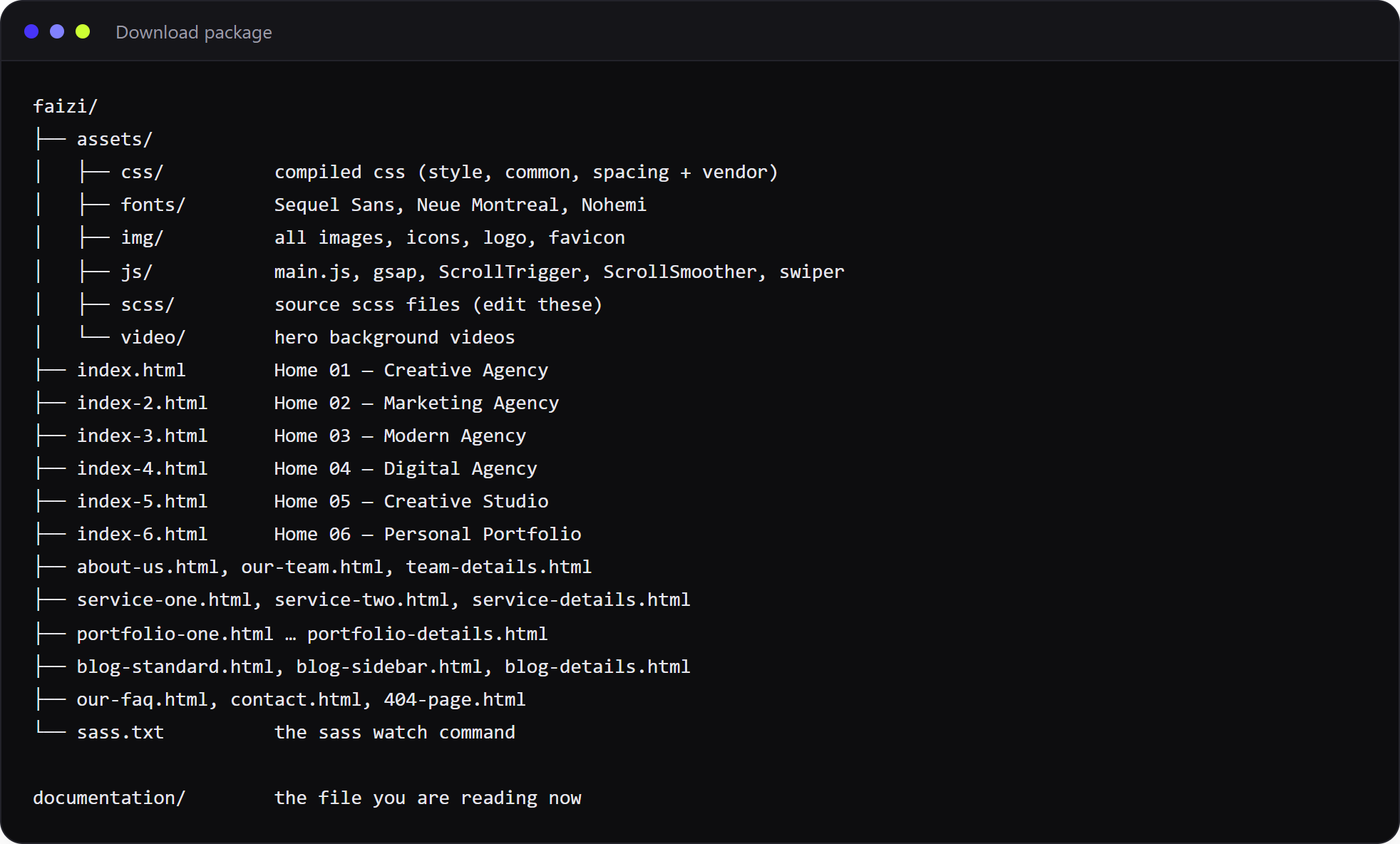
After downloading the template package from ThemeForest you will get the following files and folders:

Download package structure
Contents of the template package

02 Template Structure

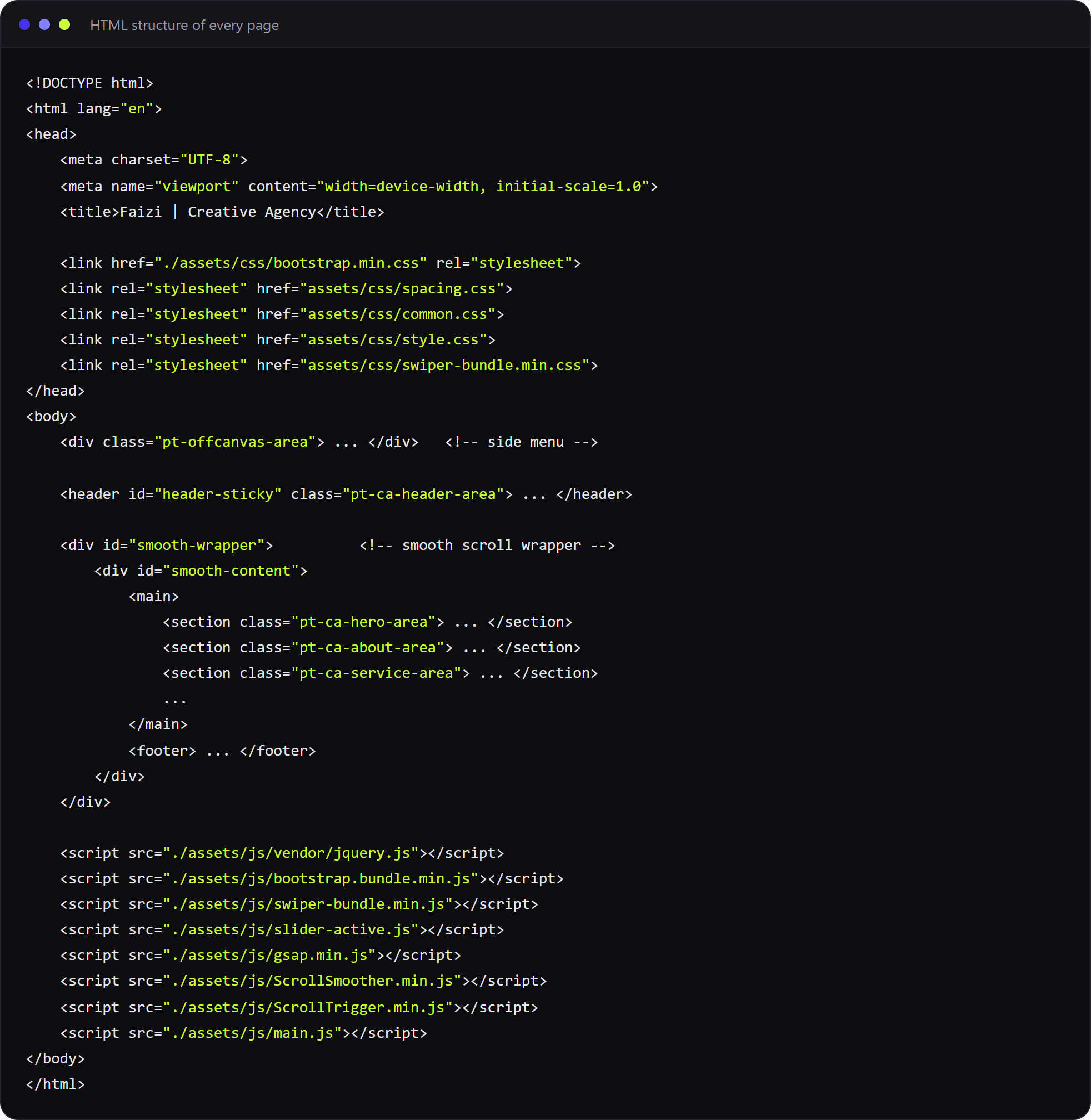
Every page follows the same structure, so once you understand one page you understand them all.

HTML Structure

The stylesheets are loaded in the <head> and all scripts sit right before the closing </body> tag. The page content lives inside #smooth-wrapper > #smooth-content, which is required by the smooth scrolling script.

HTML structure
HTML markup structure

CSS Files and Structure

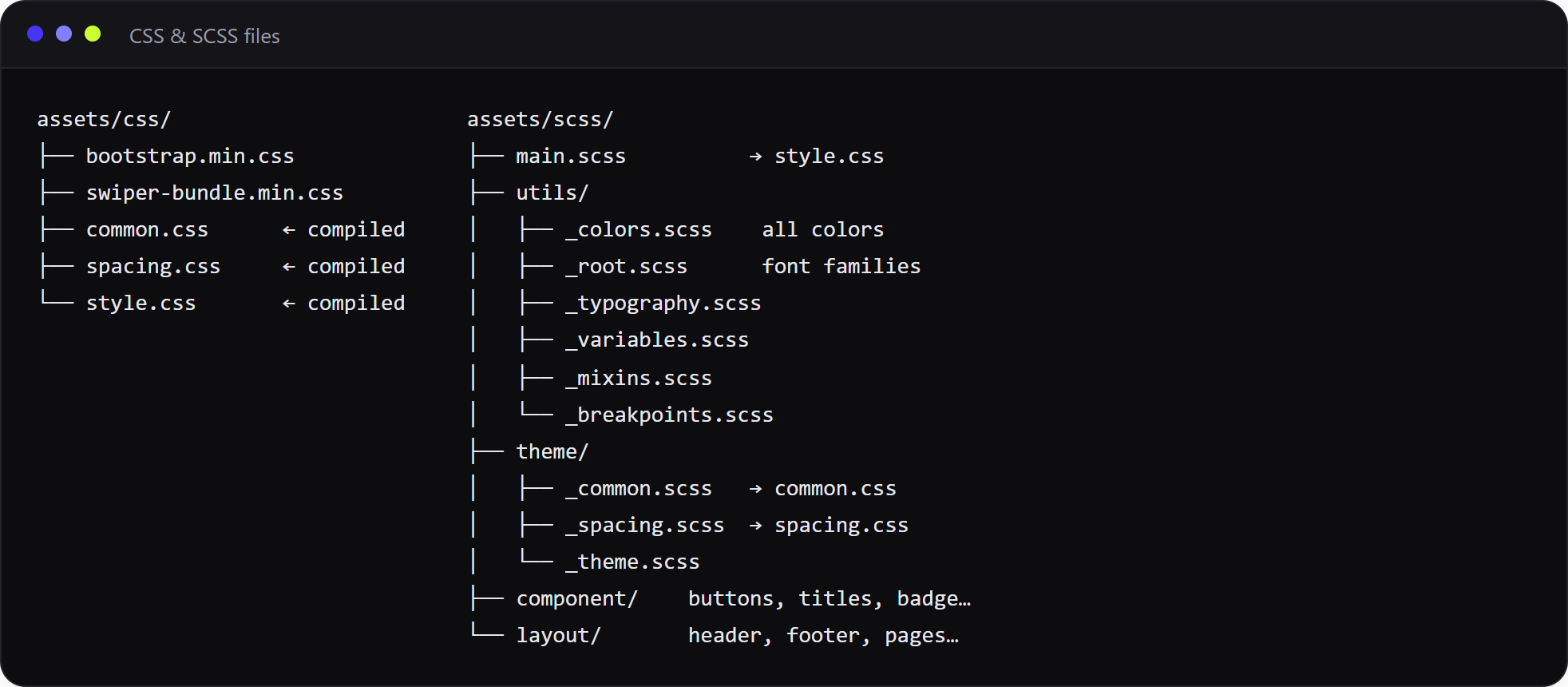
Faizi loads three custom stylesheets — common.css (fonts, colors, reset, utilities), spacing.css (margin/padding helper classes) and style.css (all section designs) — plus the Bootstrap and Swiper vendor files. All three custom files are compiled from the SCSS source in assets/scss/.

CSS and SCSS structure
CSS files and SCSS source structure

Compiling SCSS

The command below is also saved in sass.txt in the template root. Run it from the template folder and Sass will rebuild the CSS every time you save a .scss file.

sass --watch assets/scss/main.scss:assets/css/style.css assets/scss/theme/_common.scss:assets/css/common.css assets/scss/theme/_spacing.scss:assets/css/spacing.css

JavaScript Files

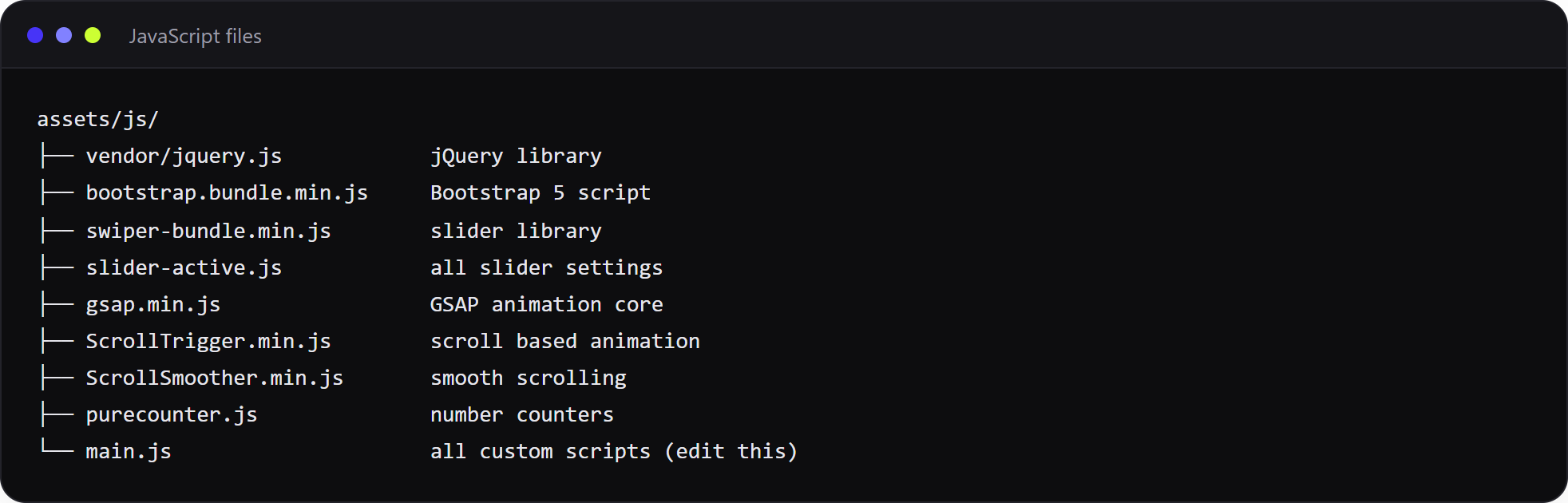
All custom scripts live in one commented file: assets/js/main.js. The other files are libraries.

JavaScript files
JavaScript files

03 Customization

This is the part you will use most: changing colors, fonts, images and the logo.

Changing Colors

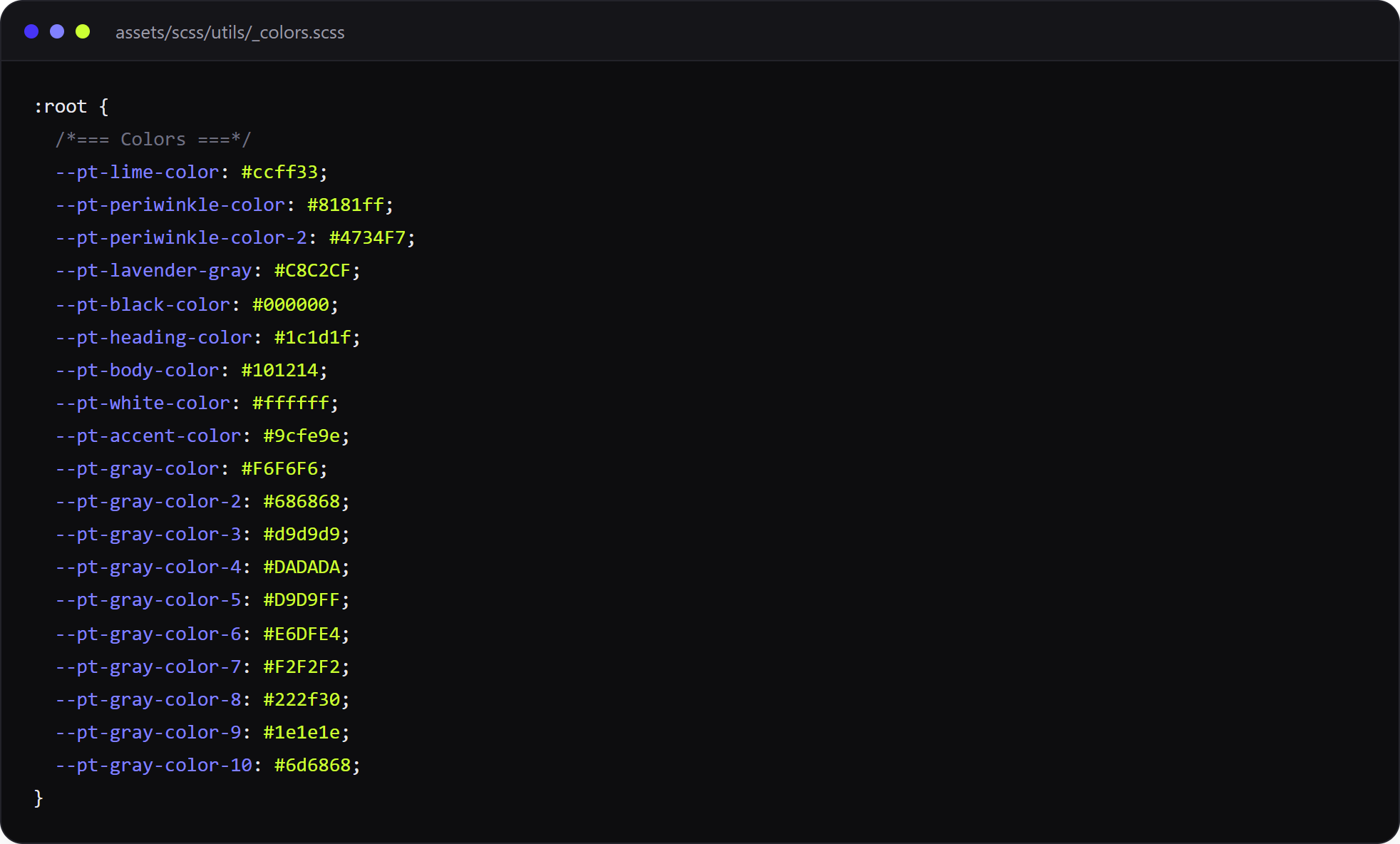
Every color in Faizi comes from one place — CSS variables declared in assets/scss/utils/_colors.scss. Change a value here and it updates across all 22 pages.

_colors.scss
assets/scss/utils/_colors.scss

Method 1 — editing the SCSS source (recommended)

  1. Open assets > scss > utils > _colors.scss in a code editor.
  2. Change the value on the right side of any variable, for example --pt-lime-color: #ccff33; to your own brand color.
  3. Save the file.
  4. Run the Sass command shown in the CSS Files and Structure section so the CSS is rebuilt.
  5. Refresh the page in your browser.

Method 2 — editing the compiled CSS (no Sass needed)

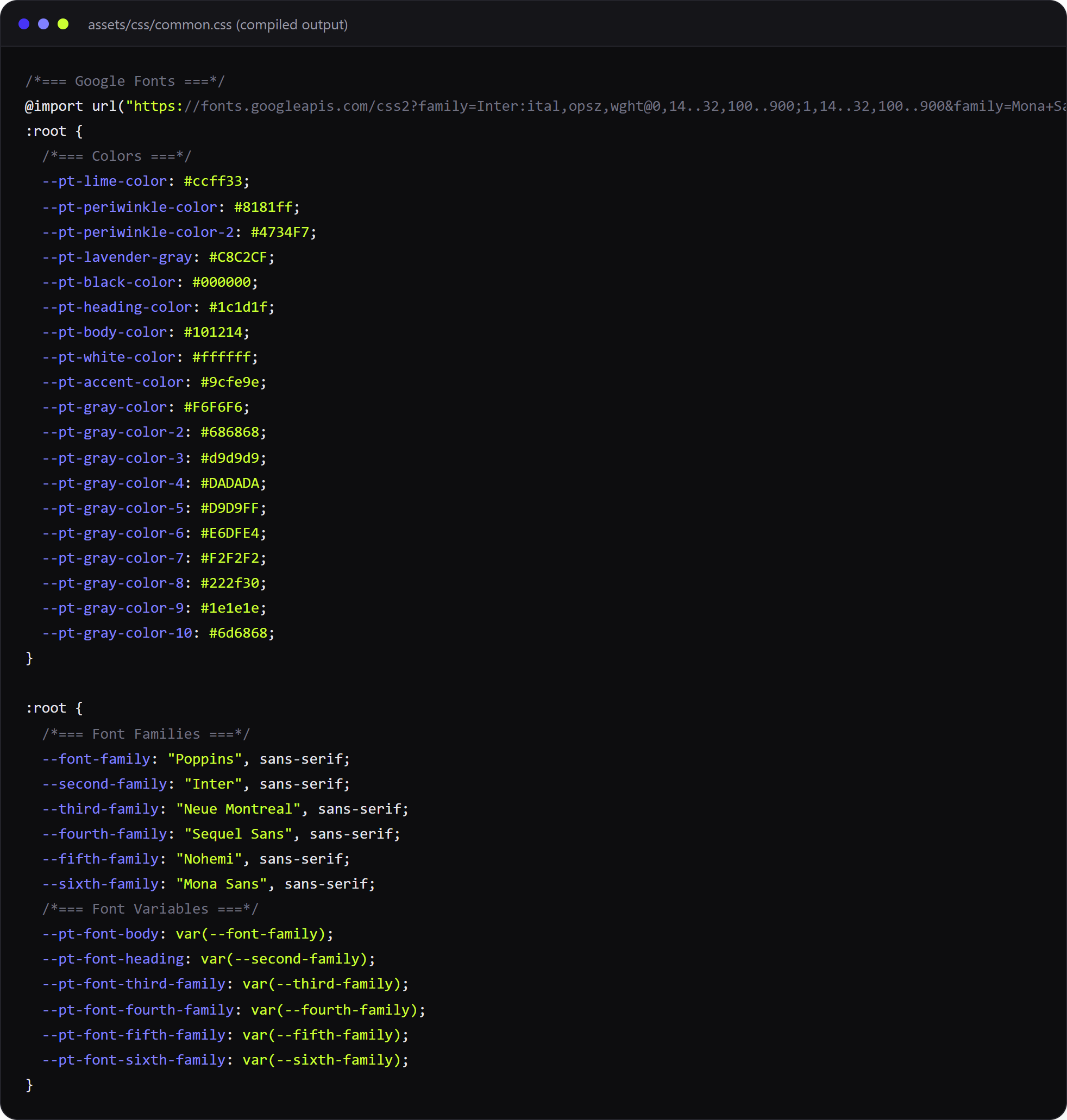
If you do not want to install Sass, you can edit the same variables directly in the compiled file assets/css/common.css. They sit in the :root block at the very top of the file.

common.css :root variables
The same variables inside assets/css/common.css
!
Careful

If you edit common.css directly and later run the Sass command, your changes will be overwritten by the compiled output. Pick one method and stay with it.

What each color does

Variable Default Where it is used
--pt-lime-color #ccff33 Main accent — buttons, highlighted words, hover states
--pt-periwinkle-color #8181ff Secondary accent, icons, text selection
--pt-periwinkle-color-2 #4734F7 Strong accent, links and hover colors
--pt-black-color #000000 Dark sections, buttons, section titles
--pt-heading-color #1c1d1f All headings (h1–h6)
--pt-body-color #101214 Body text
--pt-white-color #ffffff Light backgrounds and text on dark sections
--pt-accent-color #9cfe9e Extra accent used in a few sections
--pt-gray-color … -10 #F6F6F6 … Section backgrounds, borders, muted text

Using a color in your own CSS

.my-section {
    background: var(--pt-black-color);
    color: var(--pt-white-color);
}

.my-button:hover {
    background: var(--pt-lime-color);
}

Changing Fonts

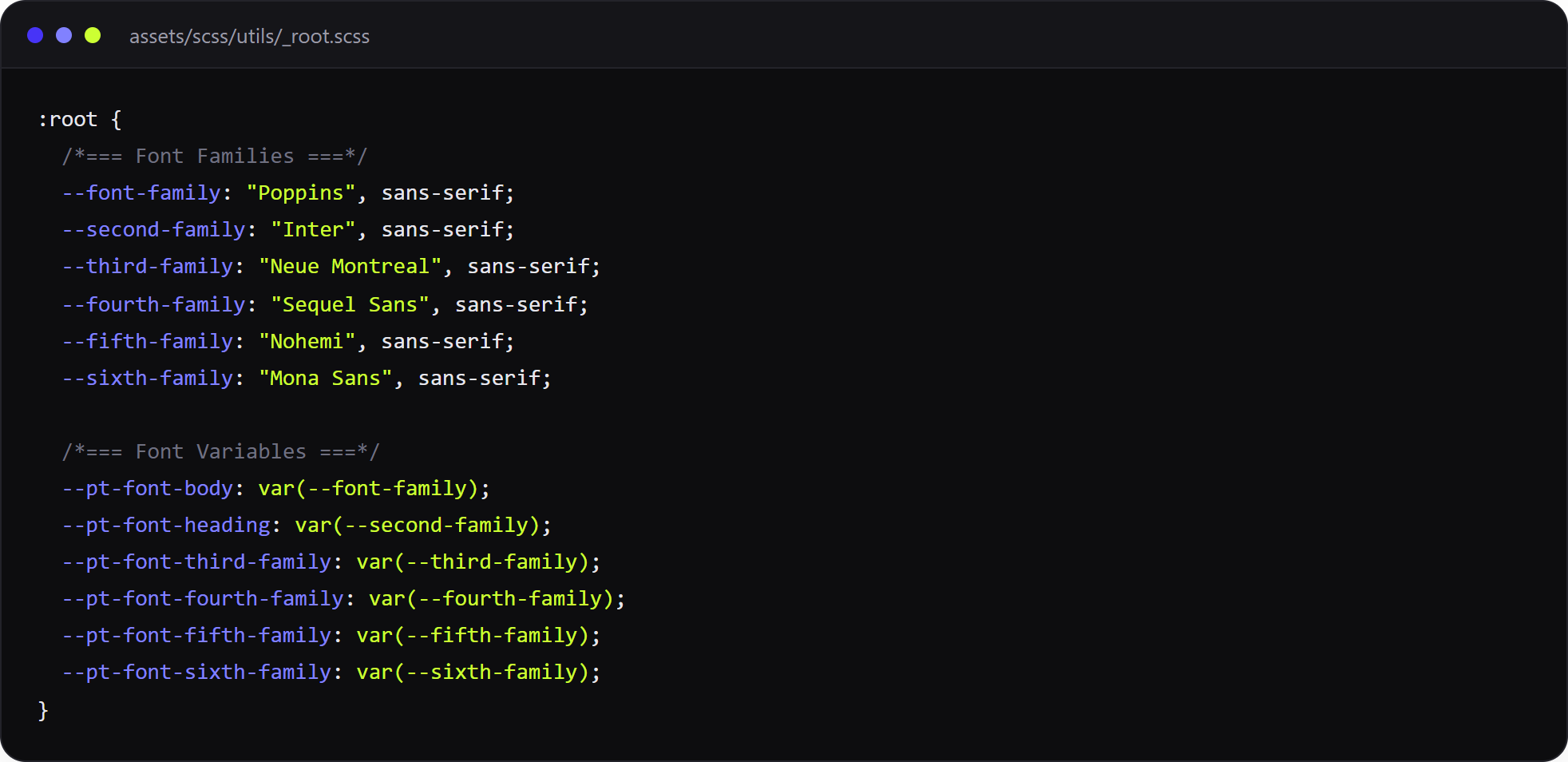
Fonts work exactly like the colors: six font families are declared as variables in assets/scss/utils/_root.scss.

_root.scss font variables
assets/scss/utils/_root.scss
Variable Font Loaded from Helper class
--font-family Poppins (body text) Google Fonts .font-one
--second-family Inter Google Fonts .font-two
--third-family Neue Montreal assets/fonts .font-three
--fourth-family Sequel Sans (big headings) assets/fonts .font-four
--fifth-family Nohemi assets/fonts .font-five
--sixth-family Mona Sans Google Fonts .font-six

Using a different Google font

  1. Pick a font on fonts.google.com and copy its @import url.
  2. Open assets > scss > theme > _common.scss and replace the @import url(...) on line 4 with your own (or add another one below it).
  3. Open assets > scss > utils > _root.scss and set the font name, for example --font-family: "Roboto", sans-serif;.
  4. Save both files and run the Sass command.

Adding your own font file (.ttf / .otf / .woff)

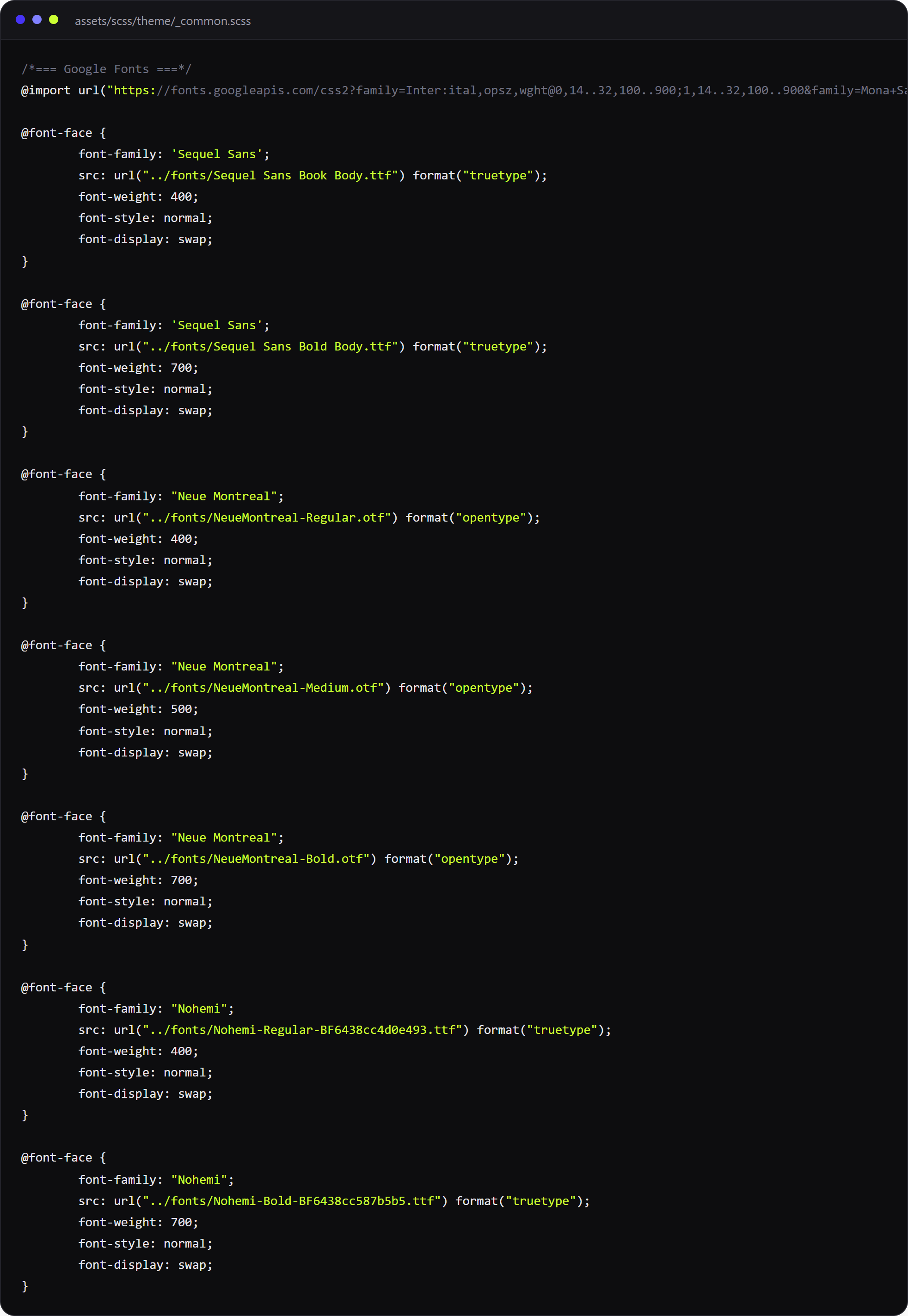
Sequel Sans, Neue Montreal and Nohemi are local fonts, declared with @font-face at the top of assets/scss/theme/_common.scss. Follow the same pattern for your font.

@font-face declarations
Google Fonts import and @font-face rules in _common.scss
  1. Copy your font file into the assets > fonts folder.
  2. Add a new @font-face block in _common.scss with your font name and file path (one block per weight).
  3. Point a variable in _root.scss to that name, e.g. --fourth-family: "My Font", sans-serif;.
  4. Save and run the Sass command.
i
No Sass?

The same @font-face rules and font variables also exist in the compiled file assets/css/common.css — you can edit them there instead.

Font helper classes

Any element can switch family or weight with a utility class, without writing new CSS:

<h2 class="pt-section-title font-four">Big heading in Sequel Sans</h2>
<h3 class="pt-section-title font-six fnw-600">Mona Sans, semi bold</h3>

<!-- families: font-one … font-six -->
<!-- weights:  fnw-400, fnw-500, fnw-600, fnw-700 -->

Changing Images

All images live in assets/img/, grouped by section (hero, about, portfolio, team, blog …).

  1. Find the image you want to replace in the HTML, e.g. ./assets/img/portfolio/portfolio-01.jpg.
  2. Open that folder inside assets > img.
  3. Replace the file with your own image, keeping the same file name and the same dimensions — then you do not have to touch any code.
  4. If you use a different name, update the src in the HTML too.

Some backgrounds are set with a data-background attribute instead of a src:

<section class="pt-ca-hero-area" data-background="./assets/img/hero/home-01-hero/hero-01.jpg">
!
Note

Images used in the live preview are for demo purposes only and are not included in the download package.

Changing Spacing

Margins and paddings use helper classes generated in assets/scss/theme/_spacing.scss (compiled to spacing.css). The pattern is mt-, mb-, pt-, pb- plus the pixel value.

<section class="pt-160 pb-160">   <!-- 160px top & bottom padding -->
    <h2 class="mb-60">Title</h2>   <!-- 60px bottom margin -->
</section>

04 Animations

All animations are written in assets/js/main.js using GSAP. You control most of them straight from the HTML with data attributes — no JavaScript editing needed.

Attribute / class What it does
data-background="url" Sets the element's background image
data-bg-color / data-text-color Sets background / text color from the HTML
data-speed="0.4" Parallax scrolling speed for that element (desktop only)
class="reveal-text" Text turns from grey to black letter by letter on scroll (reveal-text-2 = white version)
data-block="button" Magnetic button — the .button__flair circle follows the cursor
class="purecounter" Counts numbers up, target set with data-purecounter-end
class="rotate_animation" Slowly rotating element (the asterisk shapes)
data-pt-tab-group Tab group — panels open on hover
#smooth-wrapper / #smooth-content Required wrappers for GSAP ScrollSmoother

Turning smooth scrolling off

Open assets/js/main.js and comment out the ScrollSmoother.create({...}) block near the top of the file. Everything else keeps working.

// ScrollSmoother.create({
//     smooth: 1.35,
//     effects: true,
//     smoothTouch: .1,
//     ignoreMobileResize: false
// });

Changing the sliders

Every slider is a Swiper instance configured in assets/js/slider-active.js — speed, autoplay, loop and breakpoints can all be edited there.

05 RTL Version

Faizi comes with a complete right-to-left (RTL) version for languages such as Arabic, Hebrew, Persian and Urdu. It lives in its own folder, faizi-rtl/, next to the normal left-to-right version in faizi-main/. Both folders contain the same pages with the same design — the RTL one is simply mirrored.

Folder Direction Use it for
faizi-main/ Left to right (LTR) English and every other left-to-right language
faizi-rtl/ Right to left (RTL) Arabic, Hebrew, Persian, Urdu and other right-to-left languages
!
Adding dir="rtl" alone is not enough

The CSS and JavaScript inside faizi-rtl/assets/ are different from the ones in faizi-main/assets/. If you only add dir="rtl" to a page from faizi-main, parts of the layout and the animations will still run left to right. Always use the files from the faizi-rtl folder, and never mix CSS or JS files between the two folders.

How the RTL Version Works

Five things make the RTL version different from the LTR one. You do not need to change any of them — they are already done — but it helps to know what they are when you edit the template.

What Where What it does
dir="rtl" The <html> tag of every page Tells the browser that text and layout flow from right to left. Flexbox, text alignment and Swiper sliders follow it automatically.
Bootstrap RTL assets/css/bootstrap.rtl.min.css Loaded instead of bootstrap.min.css. The grid, column offsets and helpers such as ms-*, me-*, text-start and text-end are mirrored.
Mirrored theme CSS assets/scss/ → style.css, common.css, spacing.css Every left/right value in the theme is flipped, e.g. left: 0 became right: 0 and margin-left: auto became margin-right: auto.
.pt-rtl-flip assets/scss/theme/_rtl.scss CSS cannot turn the drawing inside an SVG icon around, so arrow icons carry this class and get mirrored to point the correct way.
isRTL / dirX assets/js/main.js (top of the file) Detects the page direction. Every horizontal GSAP animation (slide-ins, horizontal scroll, sticky titles, letter reveals) is multiplied by dirX so it moves from right to left.
<!DOCTYPE html>
<html lang="en" dir="rtl">
<head>
    <!-- RTL build of Bootstrap instead of bootstrap.min.css -->
    <link rel="stylesheet" href="assets/css/bootstrap.rtl.min.css">
    ...
    <!-- the RTL version of the theme CSS (from the faizi-rtl folder) -->
    <link rel="stylesheet" href="assets/css/spacing.css">
    <link rel="stylesheet" href="assets/css/common.css">
    <link rel="stylesheet" href="assets/css/style.css">

Using the RTL Version on Your Site

  1. Upload the contents of the faizi-rtl folder to your server instead of faizi-main.
  2. On every page, change the lang attribute to your language and keep dir="rtl" — for example <html lang="ar" dir="rtl"> (ar Arabic, he Hebrew, fa Persian, ur Urdu).
  3. Replace the demo text with your own content.
  4. Add a font that supports your alphabet (see the next step) — the default fonts only contain Latin letters.
  5. If you edit SCSS, run the Sass command from inside the faizi-rtl folder so the RTL CSS is rebuilt (see CSS Files and Structure).

Adding an Arabic / Hebrew font

Poppins, Inter, Sequel Sans, Neue Montreal and Nohemi have no Arabic or Hebrew letters, so the browser would fall back to a system font. Pick a font that supports your script on Google Fonts (for example Cairo, Tajawal or Noto Kufi Arabic for Arabic, Vazirmatn for Persian, Heebo or Rubik for Hebrew) and set it in the font variables, exactly as described in Changing Fonts:

/* faizi-rtl/assets/scss/theme/_common.scss — top of the file */
@import url('https://fonts.googleapis.com/css2?family=Cairo:wght@400;500;600;700&display=swap');

/* faizi-rtl/assets/scss/utils/_root.scss */
--font-family: "Cairo", sans-serif;     /* body text */
--second-family: "Cairo", sans-serif;   /* headings */
--fourth-family: "Cairo", sans-serif;   /* big display headings */
i
Why does English text show a dot at the start of the line?

In the RTL demo the placeholder text is still English, so a sentence can look like ".watch your ideas". This is normal browser behaviour for Latin text inside a right-to-left page and goes away as soon as you add your real Arabic or Hebrew text. If you need to keep an English sentence, wrap it in <span dir="ltr">...</span>.

Adding Your Own Content in RTL

When you add new sections, icons or animations to the RTL version, follow these four rules and they will face the right way.

1. Arrow icons — add .pt-rtl-flip

Any SVG that points in a direction (arrows, chevrons) needs the pt-rtl-flip class, otherwise it keeps pointing to the right. Icons that have no direction (search, close, social icons) do not need it.

<svg class="pt-rtl-flip" width="24" height="18" viewBox="0 0 24 18" fill="none">
    <path d="M0 9h22M14 1l8 8-8 8" stroke="currentColor"/>
</svg>

2. Your own CSS — use logical properties

Instead of left / right, use the "start" and "end" properties. They follow the page direction automatically, so the same CSS works in both versions.

Instead of Use
margin-left / margin-right margin-inline-start / margin-inline-end
padding-left / padding-right padding-inline-start / padding-inline-end
left: 0 / right: 0 inset-inline-start: 0 / inset-inline-end: 0
text-align: left / right text-align: start / end
Bootstrap ml-*, pl-*, float-left Bootstrap 5 ms-*, ps-*, float-start

3. Your own GSAP animation — multiply x by dirX

dirX is 1 on LTR pages and -1 on RTL pages. Multiply any horizontal value by it inside main.js and the animation mirrors itself.

// slides in from the right on LTR, from the left on RTL
gsap.from(".my-card", {
    x: 80 * dirX,
    opacity: 0,
    duration: 1
});

4. Sliders

Swiper reads the page direction by itself, so the sliders in slider-active.js already run right to left. For a new slider placed inside an element with a different direction, add dir="rtl" to its .swiper container.

Converting an LTR Page to RTL

If you created a new page in faizi-main and want it in the RTL version too:

  1. Copy the .html file into the faizi-rtl folder.
  2. Change <html lang="en"> to <html lang="en" dir="rtl"> (or your own language code).
  3. Change bootstrap.min.css to bootstrap.rtl.min.css in the <head>.
  4. Add class="pt-rtl-flip" to every arrow / chevron SVG.
  5. If the page uses CSS you wrote yourself, copy it into the RTL SCSS and swap left/right values (or use the logical properties above), then run the Sass command.
  6. Open the page in the browser and check the header, sliders and animations.

06 Sources & Credits

Faizi is built with these free and licensed resources:

  • Bootstrap 5 — grid system
  • GSAP — animations
  • GSAP ScrollTrigger & ScrollSmoother
  • Swiper — sliders
  • jQuery
  • PureCounter
  • Google Fonts — Poppins, Inter, Mona Sans
  • Sequel Sans, Neue Montreal, Nohemi — local font files
  • Sass — CSS preprocessor
  • Demo images — preview only, not included

07 Support

If something is not working or you need help customizing Faizi, please email us at portraittheme572@gmail.com. Please include the page name and a screenshot — it makes answering much faster.

i
Support covers

Answering questions about the template, fixing bugs and helping with the included features. It does not cover customization work on your own new sections.

Thank you for choosing Faizi — we hope you build something great with it.